The last month I have been forensically analyzing the KAI OS 2.5, formally FireFox OS. We are seeing a bunch of these feature phones in our lab.
Download KAI OS Forensics for Money and Profit
Download KAI OS CheetSheet
#kaios #firefoxos #forensics #reversing
Tuesday, January 1, 2019


Wednesday, October 16, 2013
Wisconsin Association of Computer Crime Investigators 2013 Conference
"Sup" (...been a long while)
PTFinderFE is obsolete do to the new innovations in Volatility.
(Updated 10/20/13)My New Volatility Batch File Maker does all that PTFinderFE did and MORE!!!
*****Known Issue with processing x64 memory and creating Memdump.bat, Procmemdump and Vaddump.bat files -Fix by 10-21-2013
The New Volatility Batch File Maker is a little kludgy but usable.
The Win8 (very beta V6) Enscript does find eprocess block artifacts but doesn't currently include the offset to the PDB or the Offset.( I know- the offset to the offset)
Other Tools
Graphviz 2.34 MSI
Volatility 2.2 Standalone .exe
Volatility Test Samples
PTFinderFE is obsolete do to the new innovations in Volatility.
(Updated 10/20/13)My New Volatility Batch File Maker does all that PTFinderFE did and MORE!!!
*****Known Issue with processing x64 memory and creating Memdump.bat, Procmemdump and Vaddump.bat files -Fix by 10-21-2013
The New Volatility Batch File Maker is a little kludgy but usable.
The Win8 (very beta V6) Enscript does find eprocess block artifacts but doesn't currently include the offset to the PDB or the Offset.( I know- the offset to the offset)
Other Tools
Graphviz 2.34 MSI
Volatility 2.2 Standalone .exe
Volatility Test Samples
Friday, October 12, 2012
WACCI Conference 2012 - Tip and Tricks Notes
Wisconsin Association Computer Crimes Investigator Conference 2012
Tip and Tricks Notes:
"Thank you" for all the great input.
Digital Intelligence
Forensic Scanner
RegRipper
CERT Tools (Registration Required)
Dumpit
Volatility
Shadowkit
OS Triage (Registration Required)
WeibeTech HotPlug
iSightPartners (Registration Required)
UPX ENCASE GREP Expression \xE0UPX\x00\x00
Tip and Tricks Notes:
"Thank you" for all the great input.
Digital Intelligence
Forensic Scanner
RegRipper
CERT Tools (Registration Required)
Dumpit
Volatility
Shadowkit
OS Triage (Registration Required)
WeibeTech HotPlug
iSightPartners (Registration Required)
UPX ENCASE GREP Expression \xE0UPX\x00\x00
Tuesday, January 25, 2011
EnScripts (EnPacks) to Carve iPhone SMS Messages
These are tools to find SMS Messages from physical (carve) or logical files, recovered from an iPhone (DOWNLOAD).
This tool is really meant to find unallocated SMS Messages in a Raw disk recovery of the user disk partition as extracted by tools (http://oreilly.com/catalog/9780596153595)like the one created by Johnathon Zdziarski. (http://www.zdziarski.com/blog/?page_id=503).
If you obtain a logical copy of the files from the iPhone then you can use this tool to parse some of the information out of the SMS.db.
I created following two Enscripts to carve out SMS Messages:
1. iPhone SMS Remnant - Search by Telephone Number.EnPack is a Enscript that will prompt you for a telephone number to specifically search.
When you run the script you have to “Blue Check” all files you want to scan.
Output is to Console, Search Hits tab and Bookmark Tab. The Bookmark Tab Comment Section contains the following Information
2. iPhone SMS Remnant - Find All.EnPack is an Enscript that will attempt to find all the SMS Messages regardless of the telephone number. (After you find you "target" telephone number I recommend you use the iPhone SMS Remnant - Search by Telephone Number because it appears to find some additional remnants that this Enscript might miss.) You don't have to use the entire number you can also use just a area code ("414)or an area code + prefix(414935). Do not use and salad (spaces,dashes or wildcard characters).
My Research:
This was tested against an iPhone Version Model MB704 – Revision 3.1.3(7E18).
Test SMS.db(s) was SQLite format 3.
Sometimes the hits were like "+14145551212" and sometime they were "4145551212"
When creating these ENSCRIPTS I used a "Default Bookmark folder" so if you run these Enscript more then once each in your case, without changing the bookmark folder name, it will just OVERWRITE the previous search WITHOUT notice.
A majority of the "False Positives" appear to Call History Remnants.
To Do: This tool would be easy to change/update to find call history in allocated (call_history.db) and unallocated space.
This tool is really meant to find unallocated SMS Messages in a Raw disk recovery of the user disk partition as extracted by tools (http://oreilly.com/catalog/9780596153595)like the one created by Johnathon Zdziarski. (http://www.zdziarski.com/blog/?page_id=503).
If you obtain a logical copy of the files from the iPhone then you can use this tool to parse some of the information out of the SMS.db.
I created following two Enscripts to carve out SMS Messages:
1. iPhone SMS Remnant - Search by Telephone Number.EnPack is a Enscript that will prompt you for a telephone number to specifically search.
When you run the script you have to “Blue Check” all files you want to scan.
Output is to Console, Search Hits tab and Bookmark Tab. The Bookmark Tab Comment Section contains the following Information
2. iPhone SMS Remnant - Find All.EnPack is an Enscript that will attempt to find all the SMS Messages regardless of the telephone number. (After you find you "target" telephone number I recommend you use the iPhone SMS Remnant - Search by Telephone Number because it appears to find some additional remnants that this Enscript might miss.) You don't have to use the entire number you can also use just a area code ("414)or an area code + prefix(414935). Do not use and salad (spaces,dashes or wildcard characters).
My Research:
This was tested against an iPhone Version Model MB704 – Revision 3.1.3(7E18).
Test SMS.db(s) was SQLite format 3.
Sometimes the hits were like "+14145551212" and sometime they were "4145551212"
When creating these ENSCRIPTS I used a "Default Bookmark folder" so if you run these Enscript more then once each in your case, without changing the bookmark folder name, it will just OVERWRITE the previous search WITHOUT notice.
A majority of the "False Positives" appear to Call History Remnants.
To Do: This tool would be easy to change/update to find call history in allocated (call_history.db) and unallocated space.
Sunday, October 17, 2010
New Win7 Process Enscript (Beta)
I updated my Basic Memory Analysis Enscripts (Version 6) and rolled them out at the 2010 WACCI Conference. The newest addition is an Enscript to carve for Windows 7 Processes (Exited and Running).
Important ---If you downloaded the new Enscripts prior to 10/17/2010 please update your download to Version 2.1 - I made some changes to the Win7 (Beta) Enscript.
The magic number I am using is part of the _DISPATCHER_HEADER of the _KPROCESS.
\x03\x00\x58\x00[\x00\x01]\x00\x00\x00.[\x01-\xff]....\xff\xff.
The _KPROCESS is the first entry of the _EPROCESS.
Some Information Regarding the New Enscripts:
All the new Enscripts create a default folder to place search hits and bookmarks. If you run the Enscripts at more then one memory image you will co-mingle hits/bookmarks. And if you don’t rename the folders prior to re-running the script – there is no fail-safe check and your original folder will be overwritten.

To run any of the Enscripts just drop them into your main Enscript folder (usually C:\program files\Encase6 \Enscripts).

My RESEARCH:
\x03\x00\x58\x00[\x00\x01]\x00\x00\x00 (Too many false positives)
\xff\xff\x03\x00\x58\x00[\x00\x01]\x00\x00\x00(Missed processes)
I also tried to use something unique besides the Dispatch Header. I tried to use the following magic number which I believe is the Swap List Entry of the KPROCESS Block.
“\x04\x00\x04\x00\x00\x00\x00\x00.\x00\x00\x00\x00\x00\x00\x00\x00\x00\x00\x00\x00\x00\x00\x00\x00\x00\x00\x00\x00\x00\x00\x00\x00\x00\x00\x00\x00\x00\x00\x00[\x09\x08]” I do know that I could have used \x04\x00\x04\x00{36,36}[\x09\x08]
This also missed several processes in my test data.
The following is output from WinDBG for the command “dt _eprocess”:
Windows 7 Kernel Version 7600 MP (8 procs) Free x64
Product: WinNt, suite: TerminalServer SingleUserTS
Built by: 7600.16617.amd64fre.win7_gdr.100618-1621
Machine Name:
Kernel base = 0xfffff800`02c67000 PsLoadedModuleList = 0xfffff800`02ea4e50
Debug session time: Mon Oct 11 14:12:52.405 2010 (UTC - 5:00)
System Uptime: 0 days 0:15:33.732
lkd> dt _eprocess
nt!_EPROCESS
+0x000 Pcb : _KPROCESS (Location of the _DISPATCHER_HEADER)
+0x160 ProcessLock : _EX_PUSH_LOCK
+0x168 CreateTime : _LARGE_INTEGER (Dec Offset 360)
+0x170 ExitTime : _LARGE_INTEGER(Dec Offset 368)
+0x178 RundownProtect : _EX_RUNDOWN_REF
+0x180 UniqueProcessId : Ptr64 Void(Dec Offset 384)
+0x188 ActiveProcessLinks : _LIST_ENTRY
-------------------------Truncated
+0x290 InheritedFromUniqueProcessId : Ptr64 Void(Dec Offset 656)
------------------------Truncated
+0x2e0 ImageFileName : [15] UChar(Dec Offset 736)
THANK YOU:
A special “Thank You” to Lance Mueller for his AWESOME Free Enscript Tutorial which was a HUGE Help to me.
Important ---If you downloaded the new Enscripts prior to 10/17/2010 please update your download to Version 2.1 - I made some changes to the Win7 (Beta) Enscript.
The magic number I am using is part of the _DISPATCHER_HEADER of the _KPROCESS.
\x03\x00\x58\x00[\x00\x01]\x00\x00\x00.[\x01-\xff]....\xff\xff.
The _KPROCESS is the first entry of the _EPROCESS.
Some Information Regarding the New Enscripts:
All the new Enscripts create a default folder to place search hits and bookmarks. If you run the Enscripts at more then one memory image you will co-mingle hits/bookmarks. And if you don’t rename the folders prior to re-running the script – there is no fail-safe check and your original folder will be overwritten.

To run any of the Enscripts just drop them into your main Enscript folder (usually C:\program files\Encase6 \Enscripts).

My RESEARCH:
\x03\x00\x58\x00[\x00\x01]\x00\x00\x00 (Too many false positives)
\xff\xff\x03\x00\x58\x00[\x00\x01]\x00\x00\x00(Missed processes)
I also tried to use something unique besides the Dispatch Header. I tried to use the following magic number which I believe is the Swap List Entry of the KPROCESS Block.
“\x04\x00\x04\x00\x00\x00\x00\x00.\x00\x00\x00\x00\x00\x00\x00\x00\x00\x00\x00\x00\x00\x00\x00\x00\x00\x00\x00\x00\x00\x00\x00\x00\x00\x00\x00\x00\x00\x00\x00[\x09\x08]” I do know that I could have used \x04\x00\x04\x00{36,36}[\x09\x08]
This also missed several processes in my test data.
The following is output from WinDBG for the command “dt _eprocess”:
Windows 7 Kernel Version 7600 MP (8 procs) Free x64
Product: WinNt, suite: TerminalServer SingleUserTS
Built by: 7600.16617.amd64fre.win7_gdr.100618-1621
Machine Name:
Kernel base = 0xfffff800`02c67000 PsLoadedModuleList = 0xfffff800`02ea4e50
Debug session time: Mon Oct 11 14:12:52.405 2010 (UTC - 5:00)
System Uptime: 0 days 0:15:33.732
lkd> dt _eprocess
nt!_EPROCESS
+0x000 Pcb : _KPROCESS (Location of the _DISPATCHER_HEADER)
+0x160 ProcessLock : _EX_PUSH_LOCK
+0x168 CreateTime : _LARGE_INTEGER (Dec Offset 360)
+0x170 ExitTime : _LARGE_INTEGER(Dec Offset 368)
+0x178 RundownProtect : _EX_RUNDOWN_REF
+0x180 UniqueProcessId : Ptr64 Void(Dec Offset 384)
+0x188 ActiveProcessLinks : _LIST_ENTRY
-------------------------Truncated
+0x290 InheritedFromUniqueProcessId : Ptr64 Void(Dec Offset 656)
------------------------Truncated
+0x2e0 ImageFileName : [15] UChar(Dec Offset 736)
THANK YOU:
A special “Thank You” to Lance Mueller for his AWESOME Free Enscript Tutorial which was a HUGE Help to me.
Wednesday, September 1, 2010
The Mystery of ROT (-29)
I know if your reading my blog you've seen ROT13 and know it is used by Microsoft in the UserAssist Registry Key.
But now I’ve found Microsoft using ROT(-29) or Rotate Minus 29 which is considerably more devious, then ROT13, for the forensic investigator.
Do the following steps to uncover ROT(-29):
1. First find a computer running Windows 7 or Vista.
2. Open Notepad and type: “ForensicZoneaaaaaaaaaabbbbbbbbbbcccccccccddddddddddForensicZone”.
3. Run Task Manager (taskmgr.exe).
4. Application Tab > Select the Notepad Task >Right Click and “Create Dump File”.
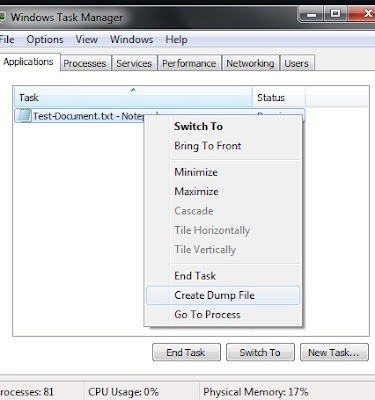
This action creates a "user-mode process dump file" at C:\Users\Your-UserName\AppData\Local\Temp\notepad.dmp
5. Open notepad.dmp using your favorite hex editor.
Scroll up from the bottom of the dump file approximately 6000 to 11000 bytes and you should see the following:
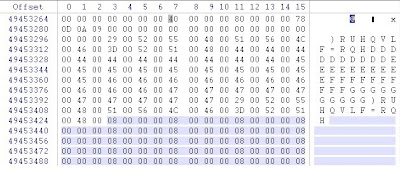
So if we decipher the information in the notepad.dmp file we see that
ASCII “F” (Dec 70) became ASCII “)” (Dec 41) – A Rotation of Minus 29
ASCII “o” (Dec 111) became ASCII “R” (Dec 82)
ASCII “r” (Hex 72) became ASCII “U” (Hex 55)
ASCII “e” - You get the picture
So “ForensicZone” becomes “ ) R U H Q V L F = R Q H”
Ok. So it is Rotation (-29) and a conversion to Unicode.
The Rotation -29 is more devious then ROT-13 because:
- Numbers and most of the Special Characters do not convert to a printable ASCII range.
- Capitol Letters are converted to numbers and special characters.
- The Unicode also makes it easy to overlook this information.
I then started conducting searches on dead Windows 7 and Vista Machines looking for the ROT (-29) in the wild. I used several search terms but haven’t been able to find much practical use for this information, as of yet. I also couldn't find a consistent magic number and the only hits I could find was on the word Microsoft (Microsoft + ROT(-29) = 0 L F U R V I Q) mostly dealing with Microsoft Office Document Metadata. (Note: The funny looking 0 is a zero)
There might be an easy explanation for Microsoft using ROT (-29) but I don't know what it is. If I am way off base or someone else has information about this please let me know.
Additional:
I discovered ROT(-29) while preparing for my presentation for the Wisconsin Association Computer Crimes Investigators (WACCI) Conference 2010. One of the Keynote Speakers I am really looking forward to meeting at the WACCI 2010 Conference is Harlan Carvey.
But now I’ve found Microsoft using ROT(-29) or Rotate Minus 29 which is considerably more devious, then ROT13, for the forensic investigator.
Do the following steps to uncover ROT(-29):
1. First find a computer running Windows 7 or Vista.
2. Open Notepad and type: “ForensicZoneaaaaaaaaaabbbbbbbbbbcccccccccddddddddddForensicZone”.
3. Run Task Manager (taskmgr.exe).
4. Application Tab > Select the Notepad Task >Right Click and “Create Dump File”.

This action creates a "user-mode process dump file" at C:\Users\Your-UserName\AppData\Local\Temp\notepad.dmp
5. Open notepad.dmp using your favorite hex editor.
Scroll up from the bottom of the dump file approximately 6000 to 11000 bytes and you should see the following:

So if we decipher the information in the notepad.dmp file we see that
ASCII “F” (Dec 70) became ASCII “)” (Dec 41) – A Rotation of Minus 29
ASCII “o” (Dec 111) became ASCII “R” (Dec 82)
ASCII “r” (Hex 72) became ASCII “U” (Hex 55)
ASCII “e” - You get the picture
So “ForensicZone” becomes “ ) R U H Q V L F = R Q H”
Ok. So it is Rotation (-29) and a conversion to Unicode.
The Rotation -29 is more devious then ROT-13 because:
- Numbers and most of the Special Characters do not convert to a printable ASCII range.
- Capitol Letters are converted to numbers and special characters.
- The Unicode also makes it easy to overlook this information.
I then started conducting searches on dead Windows 7 and Vista Machines looking for the ROT (-29) in the wild. I used several search terms but haven’t been able to find much practical use for this information, as of yet. I also couldn't find a consistent magic number and the only hits I could find was on the word Microsoft (Microsoft + ROT(-29) = 0 L F U R V I Q) mostly dealing with Microsoft Office Document Metadata. (Note: The funny looking 0 is a zero)
There might be an easy explanation for Microsoft using ROT (-29) but I don't know what it is. If I am way off base or someone else has information about this please let me know.
Additional:
I discovered ROT(-29) while preparing for my presentation for the Wisconsin Association Computer Crimes Investigators (WACCI) Conference 2010. One of the Keynote Speakers I am really looking forward to meeting at the WACCI 2010 Conference is Harlan Carvey.
Friday, October 16, 2009
Walk-Through: Volatility Batch File Maker and Volatility's VadDump
*********** The First 5 Steps are exactly the same as my last posted regarding Walk-Through: Volatility Batch File Maker and Volatility's ProcDump. The Walk-through Portion is repeated here for future discussions. Skip if applicable.******************
1. Download the following files from Hogfly (Website)
exemplar6.tar.gz.001
exemplar6.tar.gz.002
exemplar6.tar.gz.003
In my example I placed the files in e:\exemlar6\ directory
2. Add the downloaded files together and Extract with the following cmd prompt code:
Copy /b “exemplar6.tar.gz.001”+ “exemplar6.tar.gz.002”+” exemplar6.tar.gz.003” exemplar6.tar.gz
3. Extract using WinRAR (exemplar6.tar.gz to exemplar6.vmem)
4. Run PtfinderFE against extracted file(exemplar6.vmem) which creates exemplar6.txt

5.Run Volatility Batch File Maker.
-a. Select e:\exemlar6\xemplar6.vmem with “Browse for Memory Capture”.
-b. Select e:\exemlar6\exemplar6.txt (created by PtFinderFE) for your memory image with “Browse for Offset Text File”.
-c. Create Batch (Which is hidden until the previous listed fields are populated).
6. .Goto the directory containing exemplar6.vmem (e:\exemlar6\) and run e:\exemlar6\vaddump.bat file.
7.Browse the e:\exemlar6\vaddump folder.(The following images is a truncated view of the vaddump directory's content):

8. Drop the entire vaddump directory and the original exemplar6.vmem into ENCASE (or your forensic tool of choice).
9. Hash all the files (Search>Calculate hash value).
10. Compare Hash Values. First you will notice some duplicated hash values between VAD files from different processes. I believe this shows that there is possibility of some type of relationship between the different processes. Look at the three files with the hash of 2defb57866392bd7145b3b85894d3a4a
atsxyzd.sys.1b13b40.00af0000-00af7fff.dmp
dxonool32.sys.17fc678.00e90000-00e97fff.dmp
dw8.exe.17f7020.00a20000-00a27fff.dmp
In my last post atsxyzd.sys, dxonool32.sys and dw8.exe were identified as suspected malware.
Now look at the VAD contents that are the same for all three files. The following is a text tepresentation(truncated)of the similar VAD Files (Hash:2defb57866392bd7145b3b85894d3a4a):
Client UrlCache MMF Ver 5.2··€···P··€···U········Äý······ø······················CLUBCLEZ
····KPAN45MJ····0HEN0X2F····WTE74L2Z····················
We can then create search words out of CLUBCLEZ, KPAN45MJ, 0HEN0X2F and WTE74L2Z(which look like they might be folder names used by Internet Explorer). For every hit in the VAD files there is a hit in the original VMEM File. There is one additional hit in the VMEM file for each search term which we would then try and figure out.
11. Create search term like “http://” and go “cherry picking” you can find a lot of IP Addresses in the suspected malware. It is very easy to find the context to your search hits just by looking at the file they are located in.
There is approximately 107 megabytes of VAD files (without duplicates). The total size of the original VMEM is 256 megabytes. That is 2/5 context provided for this dump file. In less then 6 minutes.
1. Download the following files from Hogfly (Website)
exemplar6.tar.gz.001
exemplar6.tar.gz.002
exemplar6.tar.gz.003
In my example I placed the files in e:\exemlar6\ directory
2. Add the downloaded files together and Extract with the following cmd prompt code:
Copy /b “exemplar6.tar.gz.001”+ “exemplar6.tar.gz.002”+” exemplar6.tar.gz.003” exemplar6.tar.gz
3. Extract using WinRAR (exemplar6.tar.gz to exemplar6.vmem)
4. Run PtfinderFE against extracted file(exemplar6.vmem) which creates exemplar6.txt

5.Run Volatility Batch File Maker.
-a. Select e:\exemlar6\xemplar6.vmem with “Browse for Memory Capture”.
-b. Select e:\exemlar6\exemplar6.txt (created by PtFinderFE) for your memory image with “Browse for Offset Text File”.
-c. Create Batch (Which is hidden until the previous listed fields are populated).
6. .Goto the directory containing exemplar6.vmem (e:\exemlar6\) and run e:\exemlar6\vaddump.bat file.
7.Browse the e:\exemlar6\vaddump folder.(The following images is a truncated view of the vaddump directory's content):

8. Drop the entire vaddump directory and the original exemplar6.vmem into ENCASE (or your forensic tool of choice).
9. Hash all the files (Search>Calculate hash value).
10. Compare Hash Values. First you will notice some duplicated hash values between VAD files from different processes. I believe this shows that there is possibility of some type of relationship between the different processes. Look at the three files with the hash of 2defb57866392bd7145b3b85894d3a4a
atsxyzd.sys.1b13b40.00af0000-00af7fff.dmp
dxonool32.sys.17fc678.00e90000-00e97fff.dmp
dw8.exe.17f7020.00a20000-00a27fff.dmp
In my last post atsxyzd.sys, dxonool32.sys and dw8.exe were identified as suspected malware.
Now look at the VAD contents that are the same for all three files. The following is a text tepresentation(truncated)of the similar VAD Files (Hash:2defb57866392bd7145b3b85894d3a4a):
Client UrlCache MMF Ver 5.2··€···P··€···U········Äý······ø······················CLUBCLEZ
····KPAN45MJ····0HEN0X2F····WTE74L2Z····················
We can then create search words out of CLUBCLEZ, KPAN45MJ, 0HEN0X2F and WTE74L2Z(which look like they might be folder names used by Internet Explorer). For every hit in the VAD files there is a hit in the original VMEM File. There is one additional hit in the VMEM file for each search term which we would then try and figure out.
11. Create search term like “http://” and go “cherry picking” you can find a lot of IP Addresses in the suspected malware. It is very easy to find the context to your search hits just by looking at the file they are located in.
There is approximately 107 megabytes of VAD files (without duplicates). The total size of the original VMEM is 256 megabytes. That is 2/5 context provided for this dump file. In less then 6 minutes.
Walk-Through: Volatility Batch File Maker and Volatility's ProcDump
1. Download the following files from Hogfly (Website)
exemplar6.tar.gz.001
exemplar6.tar.gz.002
exemplar6.tar.gz.003
In my example I placed the files in e:\exemlar6\ directory
2. Add the downloaded files together and extract with the following cmd prompt code:
Copy /b “exemplar6.tar.gz.001”+ “exemplar6.tar.gz.002”+” exemplar6.tar.gz.003” exemplar6.tar.gz
3. Extract using WinRAR (exemplar6.tar.gz to exemplar6.vmem)
4. Run PtfinderFE against extracted file(exemplar6.vmem) which creates exemplar6.txt
5.Run Volatility Batch File Maker.
-a. Select e:\exemlar6\xemplar6.vmem with “Browse for Memory Capture”.
-b. Select e:\exemlar6\exemplar6.txt (created by PtFinderFE) for your memory image with “Browse for Offset Text File”.
-c. Create Batch (Which is hidden until the previous listed fields are populated).
6. .Goto the directory containing exemplar6.vmem (e:\exemlar6\) and run e:\exemlar6\procdump.bat file.
7.Browse the e:\exemlar6\procdump folder.

8.Use an anti-virus tool against the reconstructed executable files in the e:\exemlar6\procdump directory
I decided to send the files to Virus Total for testing. Using their "Send to" Function.
PID 464 - “dw8.exe”(Virus Total Results: 13 of 40 Hits)
PID 648 ”tdctxte.exe” (Virus Total Results: 116 of 41 Hits)
PID 872 ”atsxyzd.sys” (Virus Total Results: 117 of 41 Hits)
PID 1056 ”dxonool32.sys” (Virus Total Results: 119 of 40 Hits)
PID 1876 ”sopidkc.exe” (Virus Total Results: 14 of 41 Hits)
PID 1932 ”afisicx.exe” (Virus Total Results: 119 of 40 Hits)
Some Additional Notes and Some Background:
I'm not sure why but it seems the executables that have unique icons instead of the generic executable icons have a high percentage of being malicious.
Until I created Volatility Batch File Maker I was using batch file, and changing input via a spreadsheet and some “find and replace” functions. One of the batch file I created attempted to use ProcDump on all the PIDs (-p option) from 0 to 6000. Reconstructed executables were only made for PIDs that were listed as running by Ptfinder. I also tried using Procdump offset (-o option) function with the same results(and ALOT more time!!!).
I was analyzing a “real world” machine which was running over 90 processes. I placed the executables created by ProcDump into a zip files, by groups of 10. I then sent them up to Virus Total for Scanning. Unfortunately when I found a hit there was no way to determine which file out of the group of ten was the suspected malware file.
I would like to start an ssdeep database of common executables created by Procdump.
exemplar6.tar.gz.001
exemplar6.tar.gz.002
exemplar6.tar.gz.003
In my example I placed the files in e:\exemlar6\ directory
2. Add the downloaded files together and extract with the following cmd prompt code:
Copy /b “exemplar6.tar.gz.001”+ “exemplar6.tar.gz.002”+” exemplar6.tar.gz.003” exemplar6.tar.gz
3. Extract using WinRAR (exemplar6.tar.gz to exemplar6.vmem)
4. Run PtfinderFE against extracted file(exemplar6.vmem) which creates exemplar6.txt
5.Run Volatility Batch File Maker.
-a. Select e:\exemlar6\xemplar6.vmem with “Browse for Memory Capture”.
-b. Select e:\exemlar6\exemplar6.txt (created by PtFinderFE) for your memory image with “Browse for Offset Text File”.
-c. Create Batch (Which is hidden until the previous listed fields are populated).
6. .Goto the directory containing exemplar6.vmem (e:\exemlar6\) and run e:\exemlar6\procdump.bat file.
7.Browse the e:\exemlar6\procdump folder.

8.Use an anti-virus tool against the reconstructed executable files in the e:\exemlar6\procdump directory
I decided to send the files to Virus Total for testing. Using their "Send to" Function.
PID 464 - “dw8.exe”(Virus Total Results: 13 of 40 Hits)
PID 648 ”tdctxte.exe” (Virus Total Results: 116 of 41 Hits)
PID 872 ”atsxyzd.sys” (Virus Total Results: 117 of 41 Hits)
PID 1056 ”dxonool32.sys” (Virus Total Results: 119 of 40 Hits)
PID 1876 ”sopidkc.exe” (Virus Total Results: 14 of 41 Hits)
PID 1932 ”afisicx.exe” (Virus Total Results: 119 of 40 Hits)
Some Additional Notes and Some Background:
I'm not sure why but it seems the executables that have unique icons instead of the generic executable icons have a high percentage of being malicious.
Until I created Volatility Batch File Maker I was using batch file, and changing input via a spreadsheet and some “find and replace” functions. One of the batch file I created attempted to use ProcDump on all the PIDs (-p option) from 0 to 6000. Reconstructed executables were only made for PIDs that were listed as running by Ptfinder. I also tried using Procdump offset (-o option) function with the same results(and ALOT more time!!!).
I was analyzing a “real world” machine which was running over 90 processes. I placed the executables created by ProcDump into a zip files, by groups of 10. I then sent them up to Virus Total for Scanning. Unfortunately when I found a hit there was no way to determine which file out of the group of ten was the suspected malware file.
I would like to start an ssdeep database of common executables created by Procdump.
Volatility Batch File Maker

The Tool: VolatilityBatch File Maker Download
I wanted to take the text output of the various tools (Ptfinder, PtFinderFE and Volatility >PsScan2) which identifies all the offsets for (running) processes and input that offset data into several Volatility tools (ProcDump, MemDmp and VadDump). This program creates three batch files. After running the batch files I can quickly leverage additional investigation techniques at the output.
1.Run Ptfinder, PtFinderFE or Volatility >PsScan2 to create a text file that contains process offsets.
2.Run Volatility Batch File Maker.
-a.Select you memory image with “Browse for Memory Capture”.
-b.Select the Offset Text File for your memory image with “Browse for Offset Text File”.
-c.Create Batch (Which is hidden until the previous fields are populated)
Three Batch files are created,upon execution of the “Create Batch”, in the root folder where the memory capture resides. The three batch programs created are procdump.bat, memdmp.bat and vaddump.bat. When you run the batch files each one will create a folder in the residing directory and populate that directory with the selected Volatility Output. Each batch file also creates an additional text output showing any errors(procdumpinfo.txt, memdmpinfor.txt and vaddmpinfo.txt).
The following is an example of the procdump batch file with the following two inputs:
Location of Volatility = "C:\volatility"
Location of Memory Dump ="E:\exemplar\6\exemplar6.vmem"
mkdir procdump
cd procdump
python "c:\volatility\volatility" procdump -f "E:\exemplar\6\exemplar6.vmem" -u -o 0x00551b80>>procdumpinfo.txt
python "c:\volatility\volatility" procdump -f "E:\exemplar\6\exemplar6.vmem" -u -o 0x0166f7b0>>procdumpinfo.txt
python "c:\volatility\volatility" procdump -f "E:\exemplar\6\exemplar6.vmem" -u -o 0x01690920>>procdumpinfo.txt
python "c:\volatility\volatility" procdump -f "E:\exemplar\6\exemplar6.vmem" -u -o 0x016aa3c0>>procdumpinfo.txt
python "c:\volatility\volatili*****Truncated - You get the idea********************
Uses for the Ouput of the Batch Files:
After re-creating all the “executables” from the running processes you can run a virus scanner at the procdump folder. This can be another tool in the arsenal of defeating the Trojan Horse Defense.
Or how about one for the incident response guys... You could run this protocol at a full memory.dmp or on a converted hiberfil.sys (Converted with Suiche's Hibershell) created on a machine prior to your actual response and collection. How many times has someone “helped” you out by deleting the malware from the target machine just before you walked into the door. If the memory.dmp or hiberfil.sys is recent you might be able to “recreate” the malware executable. You could also show a machine has been compromised (or not) when the memory.dmp or hiberfil.sys was captured
The Vaddump folder now contains the output which can easily be used in a program like Encase to give you context to you memory image.
Some walk-through examples to be posted soon. Also I am in the process of updating PtFinderFE!!!
Thursday, April 16, 2009
Sandman Shell: Batch files to Define environment variable _NT_SYMBOL_PATH
I had the following a question from Mr Anonymous about Matthieu Suiche's Sandman Shell Project:
“...the same happens with hibrshell. When I execute the command it crashes while "Retrieving Kernel Image base". I tried with 3 different hiberfil.sys files so I guess it's not the file. The bad thing is that I also tried with different pcs and it crashed too, this means that I have no idea of what it can be. Do I need any extra software? Has anyone the same problem?...”
I have had this problem too!!! I had the same errors because I didn't have the right Microsoft Symbols installed on my testing machine or I didn't define the environment variable _NT_SYMBOL_PATH everytime I opened a new command prompt to run Sandman Shell (ha.exe). So here is how to fix both problems.
First Make sure that you have the correct symbols installed on your test machine for the specific version of the Windows OS of the Hiberfil.sys you are testing. So if your Hiberfil.sys came from a Windows XP SP2 Machine make sure you have the Windows XP SP2 Symbols installed on your testing machine. Download symbols from Microsoft.
Second you have to make sure you define the path to the symbols everytime you open a command prompt. To help me I wrote the following two batch files:
__________________________________________
Batch File 1 Name: “CreateDD_HA.bat”
cmd /k _symbols_setup.bat
__________________________________
Batch File 2 Name: “_symbols_setup.bat”
set _NT_SYMBOL_PATH=SRV*C:\WINDOWS\Symbols*http://msdl.microsoft.com/download/symbols
echo %_NT_SYMBOL_PATH%
echo off
echo ****************************
echo ****************************
Echo FIRST
Echo To Obtain a DD Image of a Hiberfil.sys File...
Echo Type "ha.exe " and drag and drop your HiberFil.sys
Echo in the command lineto look like
Echo Example "ha.exe C:\dumpfiles\Hiber\hiberfil.sys"
echo off
echo ****************************
Echo Second
Echo Once you Hiberfil.sys file is loaded
Echo And you are at the Green Prompt just type
Echo Example "create output.dd"
__________________________________
Place the two batch files in the same directory as HA.exe
And run CreateDD_HA.bat.
If this doesn't help check with M Suiche. That guy is wicked smart and very helpful!
Rick
“...the same happens with hibrshell. When I execute the command it crashes while "Retrieving Kernel Image base". I tried with 3 different hiberfil.sys files so I guess it's not the file. The bad thing is that I also tried with different pcs and it crashed too, this means that I have no idea of what it can be. Do I need any extra software? Has anyone the same problem?...”
I have had this problem too!!! I had the same errors because I didn't have the right Microsoft Symbols installed on my testing machine or I didn't define the environment variable _NT_SYMBOL_PATH everytime I opened a new command prompt to run Sandman Shell (ha.exe). So here is how to fix both problems.
First Make sure that you have the correct symbols installed on your test machine for the specific version of the Windows OS of the Hiberfil.sys you are testing. So if your Hiberfil.sys came from a Windows XP SP2 Machine make sure you have the Windows XP SP2 Symbols installed on your testing machine. Download symbols from Microsoft.
Second you have to make sure you define the path to the symbols everytime you open a command prompt. To help me I wrote the following two batch files:
__________________________________________
Batch File 1 Name: “CreateDD_HA.bat”
cmd /k _symbols_setup.bat
__________________________________
Batch File 2 Name: “_symbols_setup.bat”
set _NT_SYMBOL_PATH=SRV*C:\WINDOWS\Symbols*http://msdl.microsoft.com/download/symbols
echo %_NT_SYMBOL_PATH%
echo off
echo ****************************
echo ****************************
Echo FIRST
Echo To Obtain a DD Image of a Hiberfil.sys File...
Echo Type "ha.exe " and drag and drop your HiberFil.sys
Echo in the command lineto look like
Echo Example "ha.exe C:\dumpfiles\Hiber\hiberfil.sys"
echo off
echo ****************************
Echo Second
Echo Once you Hiberfil.sys file is loaded
Echo And you are at the Green Prompt just type
Echo Example "create output.dd"
__________________________________
Place the two batch files in the same directory as HA.exe
And run CreateDD_HA.bat.
If this doesn't help check with M Suiche. That guy is wicked smart and very helpful!
Rick
Saturday, February 21, 2009
VMWare Running? Better Check for Different Windows Operating System's EPROCESS Blocks
Identify Multiple Windows OS Versions in a Single RAM Capture if the Host Machine is Running VMWare Machines.
I often run VMWare Machines, on my host machine,so I can easily grab the machine's RAM contents by suspending the machine and analyzing the VMEM file. Nothing new there. But what is cool is when you run several VMWare machines (or just one) and grab the RAM of the host machine. If you use other tools to determine which OS is running they will only identify what OS is running on the “Host” machine and not what OS(s) are being running on VMWare machines.
So to find out which different Windows OSs were running in your captured RAM use the following GREP search across your RAM acquisition
\x4E\x00\x54\x00\x20\x00\x4B\x00\x65\x00\x72\x00\x6E\x00\x65\x00\x6C\x00\x20\x00\x26\x00\x20\x00\x53\x00\x79\x00\x73\x00\x74\x00\x65\x00\x6D\x00\x00\x00\x00\x00[\x00-\xFF]\x00[\x00-\xFF]\x00\x01\x00\x46\x00\x69\x00\x6C\x00\x65\x00\x56\x00\x65\x00\x72\x00\x73\x00\x69\x00\x6F\x00\x6E\x00\x00\x00\x00\x00
The GREP expression loosely translates to,
“N.T. .K.e.r.n.e.l. .&. .S.y.s.t.e.m........... F.i.l.e.V.e.r.s.i.o.n.....”.
This is the same GREP Expression in the RAM Enscript I created. (In the enscript the” \” is “\\”). The GREP expression is the magic number needed to find the metadata contained in the NTOSKRNL.exe. The following bytes after this GREP is the Windows OS File Version Number The file version can then be converted to the Specific Windows OS. The following is an example from the RAM Acquistion with the HOST OS (WinXPSP2) and Two VMWARE Machines (Vista and Win200) ________________________________________
Comment Operating System: Windows XPSP2 Internal Version Number = 5.1.2
File Offset 7209948
N·T· ·K·e·r·n·e·l· ·&· ·S·y·s·t·e·m·····r·)···F·i·l·e·V·e·r·s·i·o·n·····
________________________________________
Comment Operating System: Windows Vista Internal Version Number = 6.0.6
File Offset 445911836
N·T· ·K·e·r·n·e·l· ·&· ·S·y·s·t·e·m·····n·'···F·i·l·e·V·e·r·s·i·o·n·····
________________________________________
Comment Operating System: Windows 2000 Internal Version Number = 5.00.
File Offset 712069132
N·T· ·K·e·r·n·e·l· ·&· ·S·y·s·t·e·m·····8·····F·i·l·e·V·e·r·s·i·o·n·····
________________________________________
During my testing I also shutdown the VMWare Machines for approximately 10 minutes and re-acquired the RAM. I still found the OS Metadata, of one of the Machines in the second RAM acquisition. Showing there is some persistence of VMWARE' Machine's RAM in the HOST Memory. (No additional programs were started by the user during the ten minute waiting period-except the RAM acquisition tool).
Once you have the different OSs inside your RAM you can also use the same RAM Enscript to find the running/exited processes (EPROCESS Blocks) of each OS along with the other remnants. The Second RAM Acquisition did not contain the OS Metadata for the Vista VM but I still found 20 unique Vista EPROCESS Blocks. I also found about 7 unique EPROCESS Blocks from he Win2000 VM. Showing a little persistence in the RAM
So yeah... this is cool in the lab... but not sure how often anyone will need this information in the “Real World”.
Thanks to Eric at Digital Intelligence for idea of checking for this...
I often run VMWare Machines, on my host machine,so I can easily grab the machine's RAM contents by suspending the machine and analyzing the VMEM file. Nothing new there. But what is cool is when you run several VMWare machines (or just one) and grab the RAM of the host machine. If you use other tools to determine which OS is running they will only identify what OS is running on the “Host” machine and not what OS(s) are being running on VMWare machines.
So to find out which different Windows OSs were running in your captured RAM use the following GREP search across your RAM acquisition
\x4E\x00\x54\x00\x20\x00\x4B\x00\x65\x00\x72\x00\x6E\x00\x65\x00\x6C\x00\x20\x00\x26\x00\x20\x00\x53\x00\x79\x00\x73\x00\x74\x00\x65\x00\x6D\x00\x00\x00\x00\x00[\x00-\xFF]\x00[\x00-\xFF]\x00\x01\x00\x46\x00\x69\x00\x6C\x00\x65\x00\x56\x00\x65\x00\x72\x00\x73\x00\x69\x00\x6F\x00\x6E\x00\x00\x00\x00\x00
The GREP expression loosely translates to,
“N.T. .K.e.r.n.e.l. .&. .S.y.s.t.e.m........... F.i.l.e.V.e.r.s.i.o.n.....”.
This is the same GREP Expression in the RAM Enscript I created. (In the enscript the” \” is “\\”). The GREP expression is the magic number needed to find the metadata contained in the NTOSKRNL.exe. The following bytes after this GREP is the Windows OS File Version Number The file version can then be converted to the Specific Windows OS. The following is an example from the RAM Acquistion with the HOST OS (WinXPSP2) and Two VMWARE Machines (Vista and Win200) ________________________________________
Comment Operating System: Windows XPSP2 Internal Version Number = 5.1.2
File Offset 7209948
N·T· ·K·e·r·n·e·l· ·&· ·S·y·s·t·e·m·····r·)···F·i·l·e·V·e·r·s·i·o·n·····
________________________________________
Comment Operating System: Windows Vista Internal Version Number = 6.0.6
File Offset 445911836
N·T· ·K·e·r·n·e·l· ·&· ·S·y·s·t·e·m·····n·'···F·i·l·e·V·e·r·s·i·o·n·····
________________________________________
Comment Operating System: Windows 2000 Internal Version Number = 5.00.
File Offset 712069132
N·T· ·K·e·r·n·e·l· ·&· ·S·y·s·t·e·m·····8·····F·i·l·e·V·e·r·s·i·o·n·····
________________________________________
During my testing I also shutdown the VMWare Machines for approximately 10 minutes and re-acquired the RAM. I still found the OS Metadata, of one of the Machines in the second RAM acquisition. Showing there is some persistence of VMWARE' Machine's RAM in the HOST Memory. (No additional programs were started by the user during the ten minute waiting period-except the RAM acquisition tool).
Once you have the different OSs inside your RAM you can also use the same RAM Enscript to find the running/exited processes (EPROCESS Blocks) of each OS along with the other remnants. The Second RAM Acquisition did not contain the OS Metadata for the Vista VM but I still found 20 unique Vista EPROCESS Blocks. I also found about 7 unique EPROCESS Blocks from he Win2000 VM. Showing a little persistence in the RAM
So yeah... this is cool in the lab... but not sure how often anyone will need this information in the “Real World”.
Thanks to Eric at Digital Intelligence for idea of checking for this...
Wednesday, January 28, 2009
Using Volatility (1.3_Beta), Volatility Plugin from Moyix, a test RAM Image (xp-laptop-2005-06-25.img) and a Windows Hash/Password Finder (SamInside or Cain and Abel) identify the passwords for the following users: Sarah, phoenix and the Administrator.
1. Run hivescan to get hive offsets
command: python volatility hivescan -f "C:\Dump\xp-laptop-2005-06-25.img"
Offset (hex)
42168328 0x2837008
42195808 0x283db60
47592824 0x2d63578
207677272 0xc60e758
207736840 0xc61d008
207759192 0xc622758
207822 ***** Truncated to save some space
2.Run hivelist with the first hivescan offset
command: python volatility hivelist -f "C:\Dump\xp-laptop-2005-06-25.img" -o 0x2837008
Address Name
0xe1ecd008 \Documents and Settings\Sarah\Local Settings\Application Data\Microsoft\Windows\UsrClass.dat
0xe1eff758 \Documents and Settings\Sarah\NTUSER.DAT
0xe1bf9008 \Documents and Settings\LocalService\Local Settings\Application Data\Microsoft\Windows\UsrClass.dat
0xe1c26850 \Documents and Settings\LocalService\NTUSER.DAT
0xe1bf1b60 \Documents and Settings\NetworkService\Local Settings\Application Data\Microsoft\Windows\UsrClass.dat
0xe1c2a758 \Documents and Settings\NetworkService\NTUSER.DAT
0xe1982008 \WINDOWS\system32\config\software
0xe197f758 \WINDOWS\system32\config\default
0xe1986008 \WINDOWS\system32\config\SAM
0xe197a758 \WINDOWS\system32\config\SECURITY
0xe1558578 [no name]
0xe1035b60 \WINDOWS\system32\config\system
0xe102e008 [no name]
3. Find Password Hash (-y System Hive Offset)(-s SAM Hive Offset) and Send to Text File.
Command: volatility hashdump -f "C:\Dump\xp-laptop-2005-06-25.img" -y 0xe1035b60 -s 0xe1986008>Password_Hash.txt
Administrator:500:08f3a52bdd35f179c81667e9d738c5d9:ed88cccbc08d1c18bcded317112555f4:::
Guest:501:aad3b435b51404eeaad3b435b51404ee:31d6cfe0d16ae931b73c59d7e0c089c0:::
HelpAssistant:1000:ddd4c9c883a8ecb2078f88d729ba2e67:e78d693bc40f92a534197dc1d3a6d34f:::
SUPPORT_388945a0:1002:aad3b435b51404eeaad3b435b51404ee:8bfd47482583168a0ae5ab020e1186a9:::
phoenix:1003:07b8418e83fad948aad3b435b51404ee:53905140b80b6d8cbe1ab5953f7c1c51:::
ASPNET:1004:2b5f618079400df84f9346ce3e830467:aef73a8bb65a0f01d9470fadc55a411c:::
Sarah:1006:aad3b435b51404eeaad3b435b51404ee:31d6cfe0d16ae931b73c59d7e0c089c0:::
4.Import Password_Hash.txt into a Password Finder (SamInside, Cain and Abel...).
User: Sarah Password: Empty
User: phoenix Password: Neon96
User: Administrator Password: Neon1996
1. Run hivescan to get hive offsets
command: python volatility hivescan -f "C:\Dump\xp-laptop-2005-06-25.img"
Offset (hex)
42168328 0x2837008
42195808 0x283db60
47592824 0x2d63578
207677272 0xc60e758
207736840 0xc61d008
207759192 0xc622758
207822 ***** Truncated to save some space
2.Run hivelist with the first hivescan offset
command: python volatility hivelist -f "C:\Dump\xp-laptop-2005-06-25.img" -o 0x2837008
Address Name
0xe1ecd008 \Documents and Settings\Sarah\Local Settings\Application Data\Microsoft\Windows\UsrClass.dat
0xe1eff758 \Documents and Settings\Sarah\NTUSER.DAT
0xe1bf9008 \Documents and Settings\LocalService\Local Settings\Application Data\Microsoft\Windows\UsrClass.dat
0xe1c26850 \Documents and Settings\LocalService\NTUSER.DAT
0xe1bf1b60 \Documents and Settings\NetworkService\Local Settings\Application Data\Microsoft\Windows\UsrClass.dat
0xe1c2a758 \Documents and Settings\NetworkService\NTUSER.DAT
0xe1982008 \WINDOWS\system32\config\software
0xe197f758 \WINDOWS\system32\config\default
0xe1986008 \WINDOWS\system32\config\SAM
0xe197a758 \WINDOWS\system32\config\SECURITY
0xe1558578 [no name]
0xe1035b60 \WINDOWS\system32\config\system
0xe102e008 [no name]
3. Find Password Hash (-y System Hive Offset)(-s SAM Hive Offset) and Send to Text File.
Command: volatility hashdump -f "C:\Dump\xp-laptop-2005-06-25.img" -y 0xe1035b60 -s 0xe1986008>Password_Hash.txt
Administrator:500:08f3a52bdd35f179c81667e9d738c5d9:ed88cccbc08d1c18bcded317112555f4:::
Guest:501:aad3b435b51404eeaad3b435b51404ee:31d6cfe0d16ae931b73c59d7e0c089c0:::
HelpAssistant:1000:ddd4c9c883a8ecb2078f88d729ba2e67:e78d693bc40f92a534197dc1d3a6d34f:::
SUPPORT_388945a0:1002:aad3b435b51404eeaad3b435b51404ee:8bfd47482583168a0ae5ab020e1186a9:::
phoenix:1003:07b8418e83fad948aad3b435b51404ee:53905140b80b6d8cbe1ab5953f7c1c51:::
ASPNET:1004:2b5f618079400df84f9346ce3e830467:aef73a8bb65a0f01d9470fadc55a411c:::
Sarah:1006:aad3b435b51404eeaad3b435b51404ee:31d6cfe0d16ae931b73c59d7e0c089c0:::
4.Import Password_Hash.txt into a Password Finder (SamInside, Cain and Abel...).
User: Sarah Password: Empty
User: phoenix Password: Neon96
User: Administrator Password: Neon1996
Thursday, June 5, 2008
Winen.exe - RAM Imaging Tool Included in New Version of Encase
Today when I downloaded the latest version of Encase (6.11.0.43) I discovered winen.exe in the Encase Program Folder. Apparently winen.exe is the new RAM Acquisition Tool Provided by Guidance. Winen.exe is suppose to work on all variations of Windows higher then 2000.
A search of Guidance Support Portal and I was able to down Winen.pdf. (Guidance Forum Access Required - 3 pages).
The Winen Executable can run as a command line tool, user prompt or from a configuration file. You can run Winen.exe from a USB drive that you plug into the Target Machine. You do need Local Administrator Privilege (which can be difficult to get- sometimes!).
If you can run Winen.exe from a USB Drive and it will prompt you for the required information needed to create the image file.
If you set up a configuration (Config) file you can speed things up.
Setting Up a Configuration File.
I created the following Config File:

As you can see I really placed the name of the image(Evidence Name)in the Evidence Path. In the Evidence Name Path I also put in the Evidence Name. This is so when I run the program it will automatically save my image file to the USB Device I am running it from.
In my example I will create a RAM_ACQ.e01 file in the same directory as I have Winen.exe installed on.
Batch File
I then created a batch file with the following line:
winen -f winen.config
“winen” is the executable to run
“-f” is the option for a Config File
“winen.config” is the name of my Config File (Must be in same path as Winen.exe)
Run the Batch file from your USB and you will automatically save you image file to your USB Drive.
Final Tweak
You can also change the name of winen.exe to something benign sounding (e.g. “sys32.exe”) to make it more difficult to identify by your target.
Using your RAM Acquisition e01 File.
Once the RAM image is created you can get information out of it by Using my RAM Enscript.
You can also use PtfinderFE on the RAM Image but you have to strip the embedded e01 data from your image file. My favorite way is by opening the image up in FTK Imager and export the unallocated space out. You could do the same thing in Encase.
 FootPrint
Winen.exe will use approximately 2.8 Mb of RAM which might also be found in the PageFile.
The following keys will be created or altered:
HKEY_LOCAL_MACHINE\SYSTEM\ \Enum\Root\ LEGACY_WINEN_
HKEY_LOCAL_MACHINE\SYSTEM\ \Services\ winen_
(Acording to the Winen.pdf)
Changes regarding adding a USB would also apply (e.g. USBStor in the Registry).
The batch file(cmd.exe) and Winen.exe (in the picture) as they appear in a PtfinderFE Graphic.
KntTools is still my RAM Acquisition tool of choice.
A search of Guidance Support Portal and I was able to down Winen.pdf. (Guidance Forum Access Required - 3 pages).
The Winen Executable can run as a command line tool, user prompt or from a configuration file. You can run Winen.exe from a USB drive that you plug into the Target Machine. You do need Local Administrator Privilege (which can be difficult to get- sometimes!).
If you can run Winen.exe from a USB Drive and it will prompt you for the required information needed to create the image file.
If you set up a configuration (Config) file you can speed things up.
Setting Up a Configuration File.
I created the following Config File:

As you can see I really placed the name of the image(Evidence Name)in the Evidence Path. In the Evidence Name Path I also put in the Evidence Name. This is so when I run the program it will automatically save my image file to the USB Device I am running it from.
In my example I will create a RAM_ACQ.e01 file in the same directory as I have Winen.exe installed on.
Batch File
I then created a batch file with the following line:
winen -f winen.config
“winen” is the executable to run
“-f” is the option for a Config File
“winen.config” is the name of my Config File (Must be in same path as Winen.exe)
Run the Batch file from your USB and you will automatically save you image file to your USB Drive.
Final Tweak
You can also change the name of winen.exe to something benign sounding (e.g. “sys32.exe”) to make it more difficult to identify by your target.
Using your RAM Acquisition e01 File.
Once the RAM image is created you can get information out of it by Using my RAM Enscript.
You can also use PtfinderFE on the RAM Image but you have to strip the embedded e01 data from your image file. My favorite way is by opening the image up in FTK Imager and export the unallocated space out. You could do the same thing in Encase.
 FootPrint
Winen.exe will use approximately 2.8 Mb of RAM which might also be found in the PageFile.
The following keys will be created or altered:
HKEY_LOCAL_MACHINE\SYSTEM\
HKEY_LOCAL_MACHINE\SYSTEM\
(Acording to the Winen.pdf)
Changes regarding adding a USB would also apply (e.g. USBStor in the Registry).
The batch file(cmd.exe) and Winen.exe (in the picture) as they appear in a PtfinderFE Graphic.
KntTools is still my RAM Acquisition tool of choice.
Monday, May 19, 2008

I am presenting a two-day course on RAM Acquisition and RAM Analysis at Digital Intelligence. The course is June 10-12, 2008 and is FREE.
The following is a quick synopsis of the training:
RAM Analysis – Vista and Beyond
Everything run on a computer passes through the RAM at one time or another. The trick is being able to identify data found in a RAM capture and relate it back to the item that originally created it. This two day training session includes a very "hands-on" lab to train on different tools and using various methods for collecting RAM from a running machine.
For more Information.
Saturday, May 3, 2008
BIOS Magic Numbers in RAM (Beta)
A colleague of mine approached me after teaching a class on finding information in RAM. He asked me to prove a particular RAM acquisition came form a particular machine. My first thought was to run to the remnants from the registry. But do to paging of the registry and many false positives this proved a little more difficult then I originally thought... But as you guessed by the title I then found the information from the machine’s BIOS.
1. Using Encase create the following GREP Expression:
\x00\x14\x00\x00\x01\x02..\x03
2. Run against the DFRWS Dump and review your findings:

The information contained in the BIOS is pretty substantial often including make, model and serial number of the computer the data was collected
So far the BIOS Magic Numbers have found the BIOS Information on every RAM Acquisition I have tested it on. (Win2000 to Vista).
Future Work:
1. Find the Length of the BIOS Information or a Good Footer.
2. Place in RAM Enscript
1. Using Encase create the following GREP Expression:
\x00\x14\x00\x00\x01\x02..\x03
2. Run against the DFRWS Dump and review your findings:

The information contained in the BIOS is pretty substantial often including make, model and serial number of the computer the data was collected
So far the BIOS Magic Numbers have found the BIOS Information on every RAM Acquisition I have tested it on. (Win2000 to Vista).
Future Work:
1. Find the Length of the BIOS Information or a Good Footer.
2. Place in RAM Enscript
Friday, May 2, 2008
RAM Enscript Version 1.0
RAM ENSCRIPT UPDATED!!! Download
The new RAM Enscript contains:
OS Identification
Processes (Exited / Running)
Registry Remnants (UserAssist)
MSHTML Remnants
MFT Parser.
Runs against RAM Dumps from Windows 2000 to Vista.
Many Thanks to the First RAM Analysis Advance Class at IACIS- Thanks for the Hard Work.
The new RAM Enscript contains:
OS Identification
Processes (Exited / Running)
Registry Remnants (UserAssist)
MSHTML Remnants
MFT Parser.
Runs against RAM Dumps from Windows 2000 to Vista.
Many Thanks to the First RAM Analysis Advance Class at IACIS- Thanks for the Hard Work.
Saturday, March 15, 2008
Practical of “15 Minute Virus Analysis”
I want to show a practical of my “15 Minute Virus Analysis”
You must download the RADA Virus if you want to “play” along. The RADA Virus is a REAL VIRUS SO BE CAREFUL…
The RADA VIRUS was created several years ago to test other geeks participating in the HONEYNET Project. Also download one of the best solutions to the RADA Challenge (But don’t read the solution, yet…).
Make three folders in you working directory called: Baseline, Infected and Start_and_Stop. Start your machine (After you clone your pristine VMWARE Win2000 Machine). When you machine completely boots suspend your machine. Another term often used for suspend is “pause” because the VMWARE “Suspend” Button looks just like a regular “Pause” button. . Copy the VMEM file from you VM Directory into your working directory titled” Baseline”.
In my example I am copying the VMEM file from my VMWARE Machine Called Win2000-Rada.VMEM to the working “Baseline” Folder.

Now Resume the machine and add the RADA Virus. I choose to originally copy the virus to a CD so I place the CD in the machine and copy RADA to a Folder called "Virus" on my Desktop.

Now double click on RADA. Wait a second and “Suspend” the machine.
If you did not run the Connection Wizard prior to infection you will probably see the following:

Copy the VMEM file to you “Infected” Folder. Resume your machine. Using your machine’s own functions restart the machine. Once the machine reboots suspend the machine again and copy the VMEM file to the Stop_and_Start Folder.
So now we have 3 VMEM files copied into our three working folders.
Run PTFinder or PTFinderFE against the “baseline” VMEM and review the chart.
Now run PTFinder or PTFinderFE against the “Infected” VMEM and review you chart. You should see something like the following:
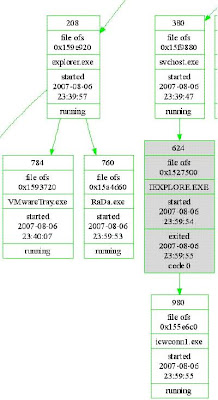
In our example the Offset of RADA= 0x15a4d60
To make my life easier I just copy cmd.exe, lspm.exe and p2x588.dll (needed by lspm.exe to run) into my “Infected” working directory. Run cmd.exe which opens to your working folder and type the following:
lspm Win2000-Rada 0x15a4d60 (and Enter)

Rada.dmp is created and put in the “Infected” Working Folder. Rada.dmp is a copy of the RADA.Exe Program as copied out of volatile memory.
Open Rada.dmp with AnalogX’s TextScan and look for important information. The following is a truncated sample of the text taken from my exam.
72457 Unichar 42 http://10.10.10.10/RaDa/RaDa_commands.html
75214 Unichar 20 C:\RaDa\bin\RaDa.exe
95754 Unichar 42 http://10.10.10.10/RaDa/RaDa_commands.html
102470 Unichar 55 HKLM\Software\Microsoft\Windows\CurrentVersion\Run\RaDa
103114 Unichar 27 C:\WINNT\System32\wshom.ocx
105509 Unichar 49 C:\Program Files\Internet Explorer\iexplore.exe
112221 Unichar 29 pec=C:\WINNT\system32\cmd.exe
122742 Unichar 42 http://10.10.10.10/RaDa/RaDa_commands.html
188853 Char 40 !This program is the binary of SotM 32..
197922 Unichar 23 http://10.10.10.10/RaDa
197974 Unichar 18 RaDa_commands.html
198038 Unichar 12 download.cgi
198070 Unichar 10 upload.cgi
198098 Unichar 11 C:\RaDa\tmp
198150 Unichar 51 HKLM\Software\Microsoft\Windows\CurrentVersion\Run\
198294 Unichar 11 C:\RaDa\bin
198346 Unichar 51 HKLM\Software\VMware Inc.\VMware Tools\InstallPath
198454 Unichar 36 Starting DDoS Smurf remote attack...
198611 Char 15 Command_install
198643 Char 53 You can learn a lot playing funny security challenges
198747 Char 13 Command_usage
198763 Char 12 Command_exit
198779 Char 12 Command_conf
198835 Char 10 Command_go
198847 Char 17 Command_uninstall
199577 Unichar 15 http://192.168.
199613 Unichar 14 http://172.16.
199649 Unichar 10 http://10.
199685 Unichar 28 InternetExplorer.Application
199813 Unichar 11 about:blank
199985 Unichar 10 screenshot
200026 Unichar 11 Application
200096 Unichar 44 Scan Of The Month 32 (SotM) - September 2004
200240 Unichar 40 http://www.honeynet.org/scans/index.html
200328 Unichar 43 Copyright (C) 2004 Raul Siles & David Perez
200420 Unichar 25RaDa Usage
200885 Unichar 41RaDa Current Configuration
201145 Unichar 38 "Content-Disposition: form-data; name="""
201257 Unichar 11 Submit Form
201297 Unichar 44 Content-Type: multipart/form-data; boundary=
201442 Unichar 18 application/upload
201486 Unichar 15 ADODB.Recordset
201634 Unichar 47 "Content-Disposition: form-data; name=""{field}"";"
201734 Unichar 18 " filename=""{file}"""
201778 Unichar 18 Content-Type: {ct}
202062 Unichar 50 Copyright (C) 2001 Antonin Foller PSTRUH Software
203147 Unichar 39 Authors: Raul Siles & David Perez 2004
Wow there is a lot of information in the little DMP File. Now go look at the Solution you downloaded. Our 15 minutes of research is not too shabby.
You must download the RADA Virus if you want to “play” along. The RADA Virus is a REAL VIRUS SO BE CAREFUL…
The RADA VIRUS was created several years ago to test other geeks participating in the HONEYNET Project. Also download one of the best solutions to the RADA Challenge (But don’t read the solution, yet…).
Make three folders in you working directory called: Baseline, Infected and Start_and_Stop. Start your machine (After you clone your pristine VMWARE Win2000 Machine). When you machine completely boots suspend your machine. Another term often used for suspend is “pause” because the VMWARE “Suspend” Button looks just like a regular “Pause” button. . Copy the VMEM file from you VM Directory into your working directory titled” Baseline”.
In my example I am copying the VMEM file from my VMWARE Machine Called Win2000-Rada.VMEM to the working “Baseline” Folder.

Now Resume the machine and add the RADA Virus. I choose to originally copy the virus to a CD so I place the CD in the machine and copy RADA to a Folder called "Virus" on my Desktop.

Now double click on RADA. Wait a second and “Suspend” the machine.
If you did not run the Connection Wizard prior to infection you will probably see the following:

Copy the VMEM file to you “Infected” Folder. Resume your machine. Using your machine’s own functions restart the machine. Once the machine reboots suspend the machine again and copy the VMEM file to the Stop_and_Start Folder.
So now we have 3 VMEM files copied into our three working folders.
Run PTFinder or PTFinderFE against the “baseline” VMEM and review the chart.
Now run PTFinder or PTFinderFE against the “Infected” VMEM and review you chart. You should see something like the following:

In our example the Offset of RADA= 0x15a4d60
To make my life easier I just copy cmd.exe, lspm.exe and p2x588.dll (needed by lspm.exe to run) into my “Infected” working directory. Run cmd.exe which opens to your working folder and type the following:
lspm Win2000-Rada 0x15a4d60 (and Enter)

Rada.dmp is created and put in the “Infected” Working Folder. Rada.dmp is a copy of the RADA.Exe Program as copied out of volatile memory.
Open Rada.dmp with AnalogX’s TextScan and look for important information. The following is a truncated sample of the text taken from my exam.
72457 Unichar 42 http://10.10.10.10/RaDa/RaDa_commands.html
75214 Unichar 20 C:\RaDa\bin\RaDa.exe
95754 Unichar 42 http://10.10.10.10/RaDa/RaDa_commands.html
102470 Unichar 55 HKLM\Software\Microsoft\Windows\CurrentVersion\Run\RaDa
103114 Unichar 27 C:\WINNT\System32\wshom.ocx
105509 Unichar 49 C:\Program Files\Internet Explorer\iexplore.exe
112221 Unichar 29 pec=C:\WINNT\system32\cmd.exe
122742 Unichar 42 http://10.10.10.10/RaDa/RaDa_commands.html
188853 Char 40 !This program is the binary of SotM 32..
197922 Unichar 23 http://10.10.10.10/RaDa
197974 Unichar 18 RaDa_commands.html
198038 Unichar 12 download.cgi
198070 Unichar 10 upload.cgi
198098 Unichar 11 C:\RaDa\tmp
198150 Unichar 51 HKLM\Software\Microsoft\Windows\CurrentVersion\Run\
198294 Unichar 11 C:\RaDa\bin
198346 Unichar 51 HKLM\Software\VMware Inc.\VMware Tools\InstallPath
198454 Unichar 36 Starting DDoS Smurf remote attack...
198611 Char 15 Command_install
198643 Char 53 You can learn a lot playing funny security challenges
198747 Char 13 Command_usage
198763 Char 12 Command_exit
198779 Char 12 Command_conf
198835 Char 10 Command_go
198847 Char 17 Command_uninstall
199577 Unichar 15 http://192.168.
199613 Unichar 14 http://172.16.
199649 Unichar 10 http://10.
199685 Unichar 28 InternetExplorer.Application
199813 Unichar 11 about:blank
199985 Unichar 10 screenshot
200026 Unichar 11 Application
200096 Unichar 44 Scan Of The Month 32 (SotM) - September 2004
200240 Unichar 40 http://www.honeynet.org/scans/index.html
200328 Unichar 43 Copyright (C) 2004 Raul Siles & David Perez
200420 Unichar 25
200885 Unichar 41
201145 Unichar 38 "Content-Disposition: form-data; name="""
201257 Unichar 11 Submit Form
201297 Unichar 44 Content-Type: multipart/form-data; boundary=
201442 Unichar 18 application/upload
201486 Unichar 15 ADODB.Recordset
201634 Unichar 47 "Content-Disposition: form-data; name=""{field}"";"
201734 Unichar 18 " filename=""{file}"""
201778 Unichar 18 Content-Type: {ct}
202062 Unichar 50 Copyright (C) 2001 Antonin Foller PSTRUH Software
203147 Unichar 39 Authors: Raul Siles & David Perez 2004
Wow there is a lot of information in the little DMP File. Now go look at the Solution you downloaded. Our 15 minutes of research is not too shabby.
Friday, February 29, 2008
Fifteen Minute Malaware Analysis
Tools:
1. VMWARE Workstation or VMWARE Server (Sever=free)
2. Windows 2000 (Small$)
3. TextScan - Free (by AnalogX)
http://www.analogx.com/contents/download/program/textscan.htm
4. PtfinderFE - Free (PTFINDER by Andreas Schuster and Front-End by Richard McQuown)
5. LSPM (SourceForge)- Free (by Harlan Carvey)
Steps:
1. Create a VMWARE Windows 2000 Machine. Keep the RAM 256 MB or less (Saves Processing Time).
2. Start VMWARE 2000 Machine. Pause the machine.
3. Place a copy of the .VMEM file into a folder called "Baseline".
4. Restart your machine and add your virus. I like to run the virus from the desktop.
5. Pause your machine and place your .VMEM file into a new folder called "Infected".
6. Restart your machine. Now recycle your machine power(Turn it off and back on).
Pause your machine again and place your last .VMEM file into a folder called "Stop_and_Start".
7. Now point PTFINDERFE at the three .VMEM Files in the "Baseline", Infected" and "Stop_and_Start" Folders.
8. Review the Output JPEG image. and find your virus Process PED. Get the PED(0x#########).
9. Run LSPM using PED from Step 8.
10. Run TextScan at the LSPM created Image file.
11. Review the TextScan Text and find your gold.
1. VMWARE Workstation or VMWARE Server (Sever=free)
2. Windows 2000 (Small$)
3. TextScan - Free (by AnalogX)
http://www.analogx.com/contents/download/program/textscan.htm
4. PtfinderFE - Free (PTFINDER by Andreas Schuster and Front-End by Richard McQuown)
5. LSPM (SourceForge)- Free (by Harlan Carvey)
Steps:
1. Create a VMWARE Windows 2000 Machine. Keep the RAM 256 MB or less (Saves Processing Time).
2. Start VMWARE 2000 Machine. Pause the machine.
3. Place a copy of the .VMEM file into a folder called "Baseline".
4. Restart your machine and add your virus. I like to run the virus from the desktop.
5. Pause your machine and place your .VMEM file into a new folder called "Infected".
6. Restart your machine. Now recycle your machine power(Turn it off and back on).
Pause your machine again and place your last .VMEM file into a folder called "Stop_and_Start".
7. Now point PTFINDERFE at the three .VMEM Files in the "Baseline", Infected" and "Stop_and_Start" Folders.
8. Review the Output JPEG image. and find your virus Process PED. Get the PED(0x#########).
9. Run LSPM using PED from Step 8.
10. Run TextScan at the LSPM created Image file.
11. Review the TextScan Text and find your gold.
Friday, February 22, 2008
“Lest We Remember: Cold Boot Attacks on Encryption Keys"
Seems like a team of Princeton students have put together a very well done website, research paper (pdf) and video regarding acquiring RAM. The jist of these items shows: Information stays in RAM after power loss and then degrades, cooling DRAM Chips will help prevent the decay of volatile memory and keys to Full Disk Encryption can be obtained by capturing RAM.
The online community has definitely weighed in:
Slashdot Replies: Over 300 Comments
Freedom-to-tinker.com Over 121 Comments
I even received an email message from Multimedia Forensics regarding this new information.
I think my prior blogpost regarding the “Guillotine Method” of RAM Acquisition is the perfect twin to their basic premises except the Guillotine Method is really a “HOT Boot”.
SO at least I can say, “…I remembered... RAM Capture can be Valuable to Forensic Examiners””
The online community has definitely weighed in:
Slashdot Replies: Over 300 Comments
Freedom-to-tinker.com Over 121 Comments
I even received an email message from Multimedia Forensics regarding this new information.
I think my prior blogpost regarding the “Guillotine Method” of RAM Acquisition is the perfect twin to their basic premises except the Guillotine Method is really a “HOT Boot”.
SO at least I can say, “…I remembered... RAM Capture can be Valuable to Forensic Examiners””
Sunday, January 27, 2008
XPSP3 - How this is going to affect RAM Analysis?
Well to sum up XPSP3 (for RAM Analysis) I’d say the prognosis is great.
The key offsets that I look for in the EPROCESS (Page Directory Base, Create Time Low, Create Time High, Exit Time Low, Exit Time High, PID, Image File Name) appear to be the same as XPSP2. The Kernel Program (NTOSKRNL.exe) I use to gauge the OS Version of the RAM is also similar to previous versions.
I tried to use Windbg (v6.8.0004.0) to confirm the EPROCESS Structure but I was unable to find the new Symbols at Microsoft.
The following is my Grep Search for determining the OS Version in a RAM Analysis:
\x4E\x00\x54\x00\x20\x00\x4B\x00\x65\x00\x72\x00\x6E\x00\x65\x00\x6C\x00\x20\x00\x26
\x00\x20\x00\x53\x00\x79\x00\x73\x00\x74\x00\x65\x00\x6D\x00\x00\x00\x00\x00[\x00-\xFF]
\x00[\x00-FF]\x00\x01\x00\x46\x00\x69\x00\x6C\x00\x65\x00\x56\x00\x65\x00\x72\x00\x73
\x00\x69\x00\x6F\x00\x6E\x00\x00\x00\x00\x00
The above GREP was run against a VMEM file running XPSP3 and returned the following:
N•T• •K•e•r•n•e•l• •&• •S•y•s•t•e•m•••••b•!•••
F•i•l•e•V•e•r•s•i•o•n•••••5•.•1•.•2•6•0•0•.•3•2•6•4• •(•x•p•s•p•.•0•7•1•1•3•0•-•1•4•2•7•)
The numeration is added below:
*** Fixed Thanks to Andreas Schuster****•
Windows 2000 = 5.0.2195.x
Windows XP 32bit = 5.1.2600.x
Windows XP 64bit and Server 2003 = 5.2.3790.x
Windows Vista = 6.0.6000.x
The following is a list of the EPROCESS Information for all current versions of Windows. The XPSP3 entries are tentative and identified from hex analysis of a RAM Acquisition and should be confirmed using WinDbg as soon as possible. PTFinder and PTfinderFE work on XPSP3 just use the XPSP2 option.

The key offsets that I look for in the EPROCESS (Page Directory Base, Create Time Low, Create Time High, Exit Time Low, Exit Time High, PID, Image File Name) appear to be the same as XPSP2. The Kernel Program (NTOSKRNL.exe) I use to gauge the OS Version of the RAM is also similar to previous versions.
I tried to use Windbg (v6.8.0004.0) to confirm the EPROCESS Structure but I was unable to find the new Symbols at Microsoft.
The following is my Grep Search for determining the OS Version in a RAM Analysis:
\x4E\x00\x54\x00\x20\x00\x4B\x00\x65\x00\x72\x00\x6E\x00\x65\x00\x6C\x00\x20\x00\x26
\x00\x20\x00\x53\x00\x79\x00\x73\x00\x74\x00\x65\x00\x6D\x00\x00\x00\x00\x00[\x00-\xFF]
\x00[\x00-FF]\x00\x01\x00\x46\x00\x69\x00\x6C\x00\x65\x00\x56\x00\x65\x00\x72\x00\x73
\x00\x69\x00\x6F\x00\x6E\x00\x00\x00\x00\x00
The above GREP was run against a VMEM file running XPSP3 and returned the following:
N•T• •K•e•r•n•e•l• •&• •S•y•s•t•e•m•••••b•!•••
F•i•l•e•V•e•r•s•i•o•n•••••5•.•1•.•2•6•0•0•.•3•2•6•4• •(•x•p•s•p•.•0•7•1•1•3•0•-•1•4•2•7•)
The numeration is added below:
*** Fixed Thanks to Andreas Schuster****•
Windows 2000 = 5.0.2195.x
Windows XP 32bit = 5.1.2600.x
Windows XP 64bit and Server 2003 = 5.2.3790.x
Windows Vista = 6.0.6000.x
The following is a list of the EPROCESS Information for all current versions of Windows. The XPSP3 entries are tentative and identified from hex analysis of a RAM Acquisition and should be confirmed using WinDbg as soon as possible. PTFinder and PTfinderFE work on XPSP3 just use the XPSP2 option.

Subscribe to:
Posts (Atom)